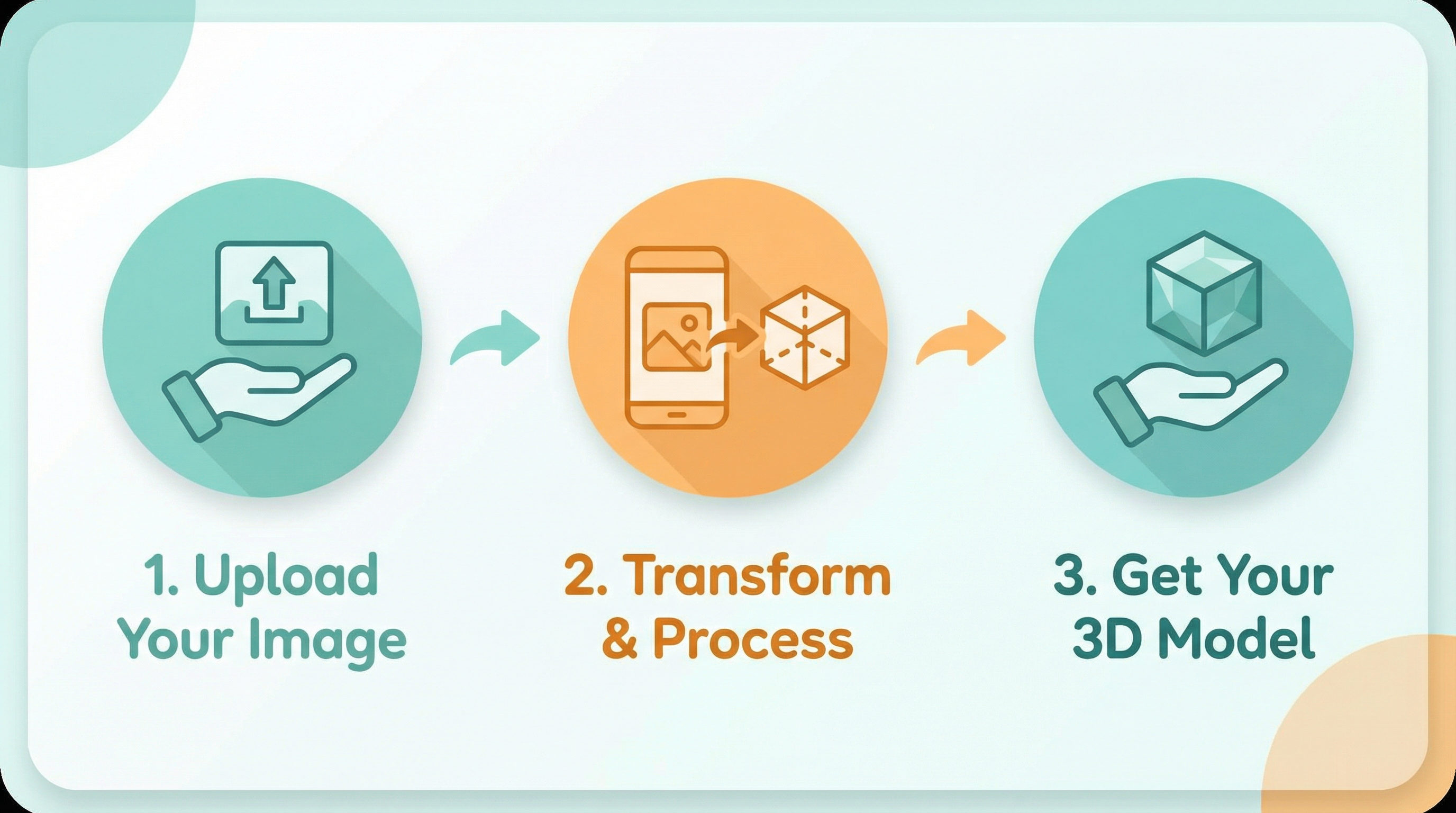
Convert 2D Pictures to 3D Models: A Step-by-Step Tutorial for Beginners
Want to convert a 2D picture to a 3D model but don't know where to start? You're in the right place. This beginner-friendly tutorial will walk you through the entire process, from preparing your image to downloading your finished 3D asset.
No 3D design experience required. No expensive software needed. Just follow along, and you'll have your first 3D icon in about 5 minutes.
What You'll Need
Before we start, make sure you have:
- A 2D image (SVG or PNG format works best)
- A web browser (Chrome, Firefox, Safari, or Edge)
- 5 minutes of your time
That's it! No software to install, no accounts to create for your first try.
Step 1: Choose Your Source Image
The quality of your 3D output depends heavily on your input image. Here's how to pick the right one:
Ideal Images
- Simple icons or logos
- Bold, clear shapes
- Solid colors (no gradients)
- Transparent background
- High contrast between elements
Images to Avoid
- Complex photographs
- Images with many small details
- Gradients or shadows baked in
- Low resolution files
- White or colored backgrounds
Quick Fix: Preparing Your Image
If your image isn't perfect, here are quick fixes:
Remove the background: Use remove.bg (free) to make your background transparent.
Simplify colors: In any image editor, reduce your image to 2-3 solid colors.
Increase contrast: Make sure your main shape is clearly distinct from any secondary elements.
Pro Tip: Start with a simple icon for your first attempt. A rocket, star, or heart shape works great. Complex logos can wait until you're comfortable with the process.
Step 2: Navigate to NanoBanana3D
Open your browser and go to NanoBanana3D's 2D to 3D converter.
You'll see a clean interface with:
- An upload area in the center
- Style options on the side
- Perspective and structure controls
Take a moment to familiarize yourself with the layout before uploading.
Step 3: Upload Your Image
Method 1: Drag and Drop
Simply drag your image file from your computer and drop it onto the upload area.
Method 2: Click to Browse
Click the upload area, then navigate to your file and select it.
What Happens Next
Once uploaded, you'll see a preview of your image. The system will analyze it and prepare it for conversion.
Supported formats:
- SVG (recommended for best quality)
- PNG (with transparent background)
- JPEG (will work, but results may vary)
Step 4: Select Your Style
This is where the magic happens. Choose a style that matches your project:
Clay Style
Best for: Consumer apps, education, social platforms
The Clay style creates soft, rounded 3D objects with a matte finish. Think of it like digital Play-Doh—friendly, approachable, and modern.
When to use:
- Building a friendly, approachable brand
- Creating icons for children's apps
- Designing social media graphics
Glass Style
Best for: Tech products, fintech, AI tools, dark mode interfaces
The Glass style creates translucent, premium-looking 3D objects with light refraction effects. It's sophisticated and futuristic.
When to use:
- Building a premium tech brand
- Creating icons for dark mode interfaces
- Designing Web3 or crypto projects
Matte White Style
Best for: B2B software, professional tools, minimalist designs
The Matte White style creates clean, professional 3D objects with subtle shadows. It's versatile and works in almost any context.
When to use:
- Building professional business tools
- Creating clean, minimal interfaces
- Designing enterprise software
Step 5: Choose Your Perspective
The perspective determines how your 3D model is viewed:
Isometric View
The camera looks at your object from a 45-degree angle, showing three sides at once.
Best for:
- Hero sections on landing pages
- Feature grids showing multiple icons
- Marketing materials and presentations
Front View
The camera looks directly at the front of your object.
Best for:
- App icons
- Buttons and UI elements
- Favicon designs
Step 6: Select Structure Mode
Structure determines how your 2D shape becomes 3D:
Solid
Your shape is extruded as a filled 3D object. This is the most common choice and works for most icons.
Best for:
- Standard icons and logos
- Filled shapes
- Most use cases
Outline
Your shape is extruded as a hollow tube, creating a unique "cookie cutter" effect.
Best for:
- Abstract shapes
- Artistic effects
- When you want something different
Step 7: Generate Your 3D Model
Click the Generate button and wait approximately 15-20 seconds.
During this time, the AI is:
- Analyzing your image
- Estimating depth and structure
- Applying your chosen style
- Rendering the final 3D model
What if it takes longer? Complex images may take up to 30 seconds. If it takes more than a minute, try refreshing and using a simpler image.
Step 8: Review Your Result
Once generation is complete, you'll see your 3D model displayed on screen.
Check for Quality
- Are the edges clean?
- Does the depth look right?
- Is the style what you expected?
Not Happy with the Result?
Try these adjustments:
- Different style: Switch from Clay to Glass or vice versa
- Different perspective: Try Isometric instead of Front
- Different structure: Switch between Solid and Outline
- Simplify your image: Remove details that might be confusing the AI
Step 9: Download Your 3D Asset
Click the Download button to save your 3D icon.
File Format
You'll receive a high-resolution PNG with a transparent background, ready to use in any design tool.
File Size
Typical file sizes range from 100KB to 500KB, depending on complexity.
Step 10: Use Your 3D Icon
Now that you have your 3D asset, here's how to use it:
In Web Design
<img
  src="/icons/my-3d-icon.png"
  alt="3D rocket icon"
  class="icon-3d"
/>
In Figma
- Drag the PNG into your Figma canvas
- Add a drop shadow for depth (Y: 20, Blur: 40)
- Position in your design
In Presentations
Simply insert the image into PowerPoint, Keynote, or Google Slides. The transparent background means it will blend seamlessly with any slide design.
Troubleshooting Common Issues
Problem: The 3D model looks lumpy or distorted
Solution: Your source image likely has gradients or shadows. Use a flat, solid-color version instead.
Problem: Parts of my icon are missing
Solution: Thin lines (< 2px) don't convert well. Make your strokes thicker or use filled shapes.
Problem: The colors look different
Solution: The 3D rendering applies lighting effects that can shift colors slightly. This is normal and usually looks better in context.
Problem: The depth doesn't look right
Solution: Try switching between Solid and Outline structure modes. Some shapes work better with one or the other.
Problem: Generation is taking too long
Solution: Your image might be too complex. Try a simpler icon or reduce the file size.
Tips for Better Results
1. Start Simple
Your first few attempts should use simple shapes. A star, heart, or basic logo will give you better results than a complex illustration.
2. Use SVG When Possible
SVG files produce the cleanest results because they're vector-based. PNG works too, but make sure it's high resolution.
3. Match Style to Context
Don't just pick a style randomly. Think about where your icon will be used and choose accordingly.
4. Create Consistent Sets
If you're making multiple icons, use the same style and perspective for all of them. Consistency is key to professional-looking designs.
5. Iterate and Experiment
Don't settle for your first result. Try different styles and settings to find what works best for your specific image.
What's Next?
Now that you've created your first 3D icon, here are some next steps:
Create an Icon Set
Convert multiple related icons using the same style for a cohesive look.
Explore Different Styles
Try all three styles (Clay, Glass, Matte White) with the same icon to see which fits your brand best.
Learn the Technology
Curious about how this works? Read our deep dive into 2D to 3D AI technology.
Read the Complete Guide
For more advanced techniques and best practices, check out our complete guide to 2D to 3D conversion.
Frequently Asked Questions
How much does it cost?
NanoBanana3D offers free generations to get started. Check the pricing page for details on plans.
Can I use the icons commercially?
Yes! Icons you create are yours to use in any project, commercial or personal.
What if I need a different file format?
The PNG format works in virtually all design tools. If you need a specific format, you can convert the PNG using any image editor.
Can I convert photographs?
The tool is optimized for icons and logos. Photographs will produce unpredictable results. For best results, stick to simple, graphic images.
How do I create multiple icons quickly?
Use the batch generation feature to convert multiple images at once with consistent settings.
Conclusion
Converting a 2D picture to a 3D model is no longer a complex, time-consuming process. With AI-powered tools like NanoBanana3D, anyone can create stunning 3D icons in minutes—no design experience required.
You've now learned:
- How to prepare your source image
- How to choose the right style, perspective, and structure
- How to generate and download your 3D asset
- How to troubleshoot common issues
Ready to create more? Head back to the converter and experiment with different images and styles. The more you practice, the better your results will be.
Want to learn more? Check out our complete guide to 2D to 3D conversion or explore the AI technology behind the magic.