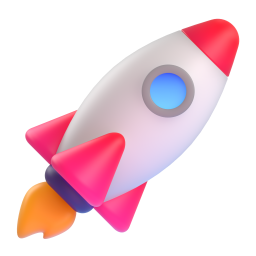
From Flat Vector to 3D Masterpiece
For years, adding custom 3D icons to your website meant one of two things: hiring a 3D illustrator ($500+/icon) or spending weeks learning Blender. You had to model the geometry, set up studio lighting, adjust shader nodes, and wait for render times.
NanoBanana3D changes everything.
In this guide, we'll show you how to turn a simple SVG logo into a stunning, production-ready 3D asset in under 30 seconds.
Phase 1: Preparing Your SVG (The Secret Sauce)
Your input determines your output. While our AI is powerful, it follows the "Garbage In, Garbage Out" rule. To get the cleanest 3D extrusion, your SVG needs to be optimized.
✅ The Checklist
- Simplify Shapes: Remove tiny details, text, or thin strokes (< 2px). 3D works best with bold, iconic shapes.
- Solid Colors: Use a single solid color (e.g., #FFB800) for your shape. The AI uses this to determine the base material color.
- Transparent Background: Ensure your file is a transparent PNG or SVG, not a white box.
⚠️ Common Mistake: Don't upload complex illustrations with gradients or shadows. The AI interprets these as geometry, leading to lumpy results. Flat is better.
Phase 2: Choosing Your Visual Language
NanoBanana3D offers several pre-trained styles. Don't just pick randomly; match your brand's voice.
Option A: Clay (Claymorphism)
- Visuals: Soft, rounded edges, matte finish, pastel colors.
- Best For: Ed-tech, health apps, social networks.
- Vibe: Friendly, safe, approachable.
Option B: Glass (Glassmorphism)
- Visuals: Translucent, frosted texture, light refraction, inner glow.
- Best For: Fintech, Web3, AI tools, Dark Mode interfaces.
- Vibe: Premium, futuristic, high-tech.
Option C: Matte / Plastic
- Visuals: Hard edges, solid specular highlights, realistic plastic texture.
- Best For: B2B SaaS, productivity tools, logistics.
- Vibe: Reliable, sturdy, efficient.
Phase 3: The Generation Workflow
- Upload: Drag your optimized SVG into the upload box.
- Select Perspective:
- Select Isometric for feature grids or hero sections.
- Select Front for app icons or buttons.
- Structure Mode:
- Solid: Good for most icons.
- Outline: Creates a unique "cookie cutter" or "tube" look (great for abstract shapes).
- Click Generate.
(Wait approx. 15-20 seconds)
Phase 4: Post-Processing & Integration
Once you download your PNG, it's ready to use. But here are a few pro tips for integrating it into your design:
In Figma
Add a subtle Drop Shadow behind the PNG to ground it.
- Y: 20, Blur: 40, Color: Brand Color (20% Opacity)
In CSS / Tailwind
/* Add a floating animation to make it feel alive */
@keyframes float {
  0% { transform: translateY(0px); }
  50% { transform: translateY(-10px); }
  100% { transform: translateY(0px); }
}

.icon-3d {
  animation: float 6s ease-in-out infinite;
  filter: drop-shadow(0 20px 30px rgba(0,0,0,0.15));
}
Conclusion
You just saved yourself 4 hours of Blender work.
Ready to create your first set? Go to the Generator and drop in your first SVG.